

FlowiseAI Integration
Overview
Section titled “Overview”FlowiseAI is a powerful low-code platform for building custom AI workflows and agents with an intuitive visual interface. It enables you to create sophisticated AI applications without extensive programming knowledge.
Key Features
Section titled “Key Features”- Visual Node-Based Editor: Drag-and-drop interface for creating AI workflows
- Pre-built Components: Extensive library of ready-to-use AI components
- Multi-Modal Support: Text, image, and audio processing capabilities
- Custom Function Support: Extend functionality with JavaScript functions
Use Cases
Section titled “Use Cases”- Building conversational AI agents for customer service
- Creating data processing and analysis pipelines
- Developing content generation and summarization tools
- Integrating multiple AI services into cohesive workflows
Setup Instructions
Section titled “Setup Instructions”1. Install FlowiseAI
Section titled “1. Install FlowiseAI”Visit the FlowiseAI GitHub repo for installation options, either via Docker or NPM:
docker pull flowiseai/flowisedocker run -d --name flowise -p 3000:3000 flowiseai/flowisenpm install -g flowisenpx flowise start2. Access FlowiseAI Dashboard
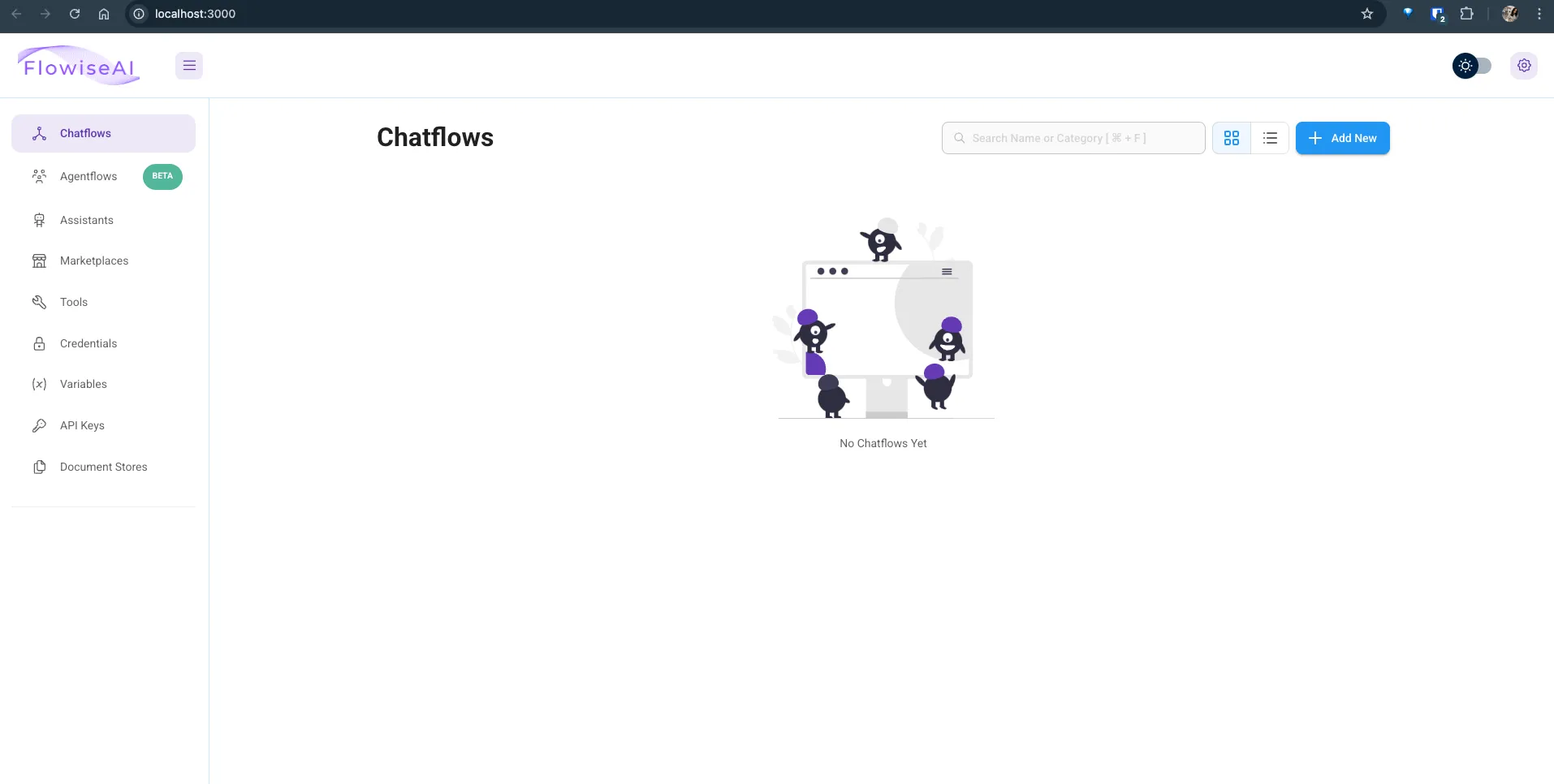
Section titled “2. Access FlowiseAI Dashboard”Open your browser and go to http://localhost:3000. You’ll see the FlowiseAI dashboard with the canvas area.
3. Create a New Flow
Section titled “3. Create a New Flow”Click on the + Add New button to create a new flow. Give your flow a name like relaxAI Integration.
4. Navigate to LangChain Components
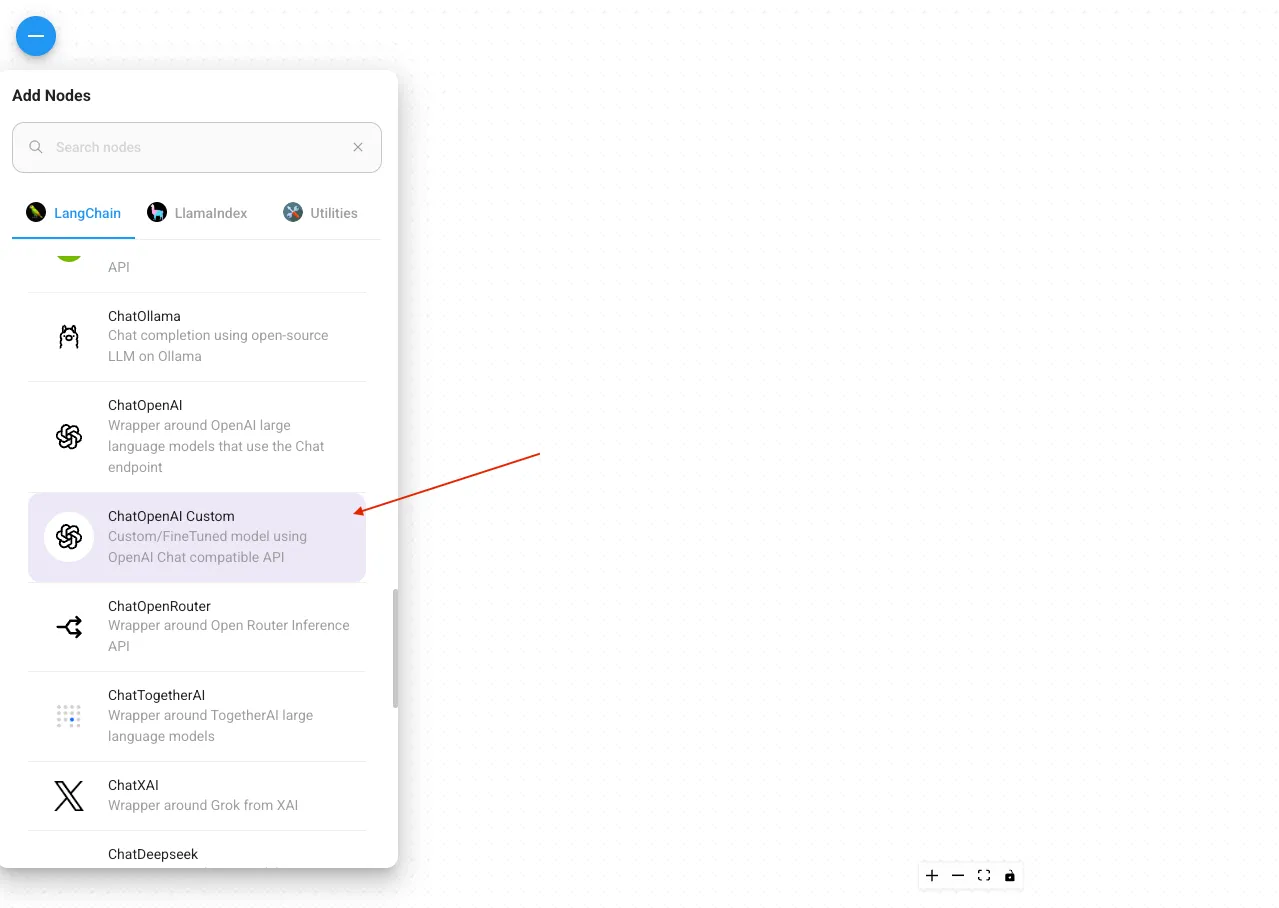
Section titled “4. Navigate to LangChain Components”In the components panel on the left, navigate to the LangChain section. Find the ChatModels category.
5. Add ChatModel Node
Section titled “5. Add ChatModel Node”Drag the ChatOpenAI Custom ChatModel node to your canvas. This will be your connection point to relaxAI.
6. Select OpenAI Compatible Option
Section titled “6. Select OpenAI Compatible Option”In the node configuration panel on the right, select Custom OpenAI API Compatible from the Model Name dropdown.
7. Configure relaxAI Settings
Section titled “7. Configure relaxAI Settings”Enter the following details in the configuration panel:
Base URL: https://api.relax.ai/v1/API Key: RELAX_API_KEYModel Name: <model name> # for example: Llama-4-Maverick-17B-128E
8. Set Additional Parameters
Section titled “8. Set Additional Parameters”- Configure optional parameters like Temperature, Top P, and Max Tokens
- Recommended starting values:
- Temperature:
0.7 - Top P:
0.95
- Temperature:
9. Complete Your Flow
Section titled “9. Complete Your Flow”-
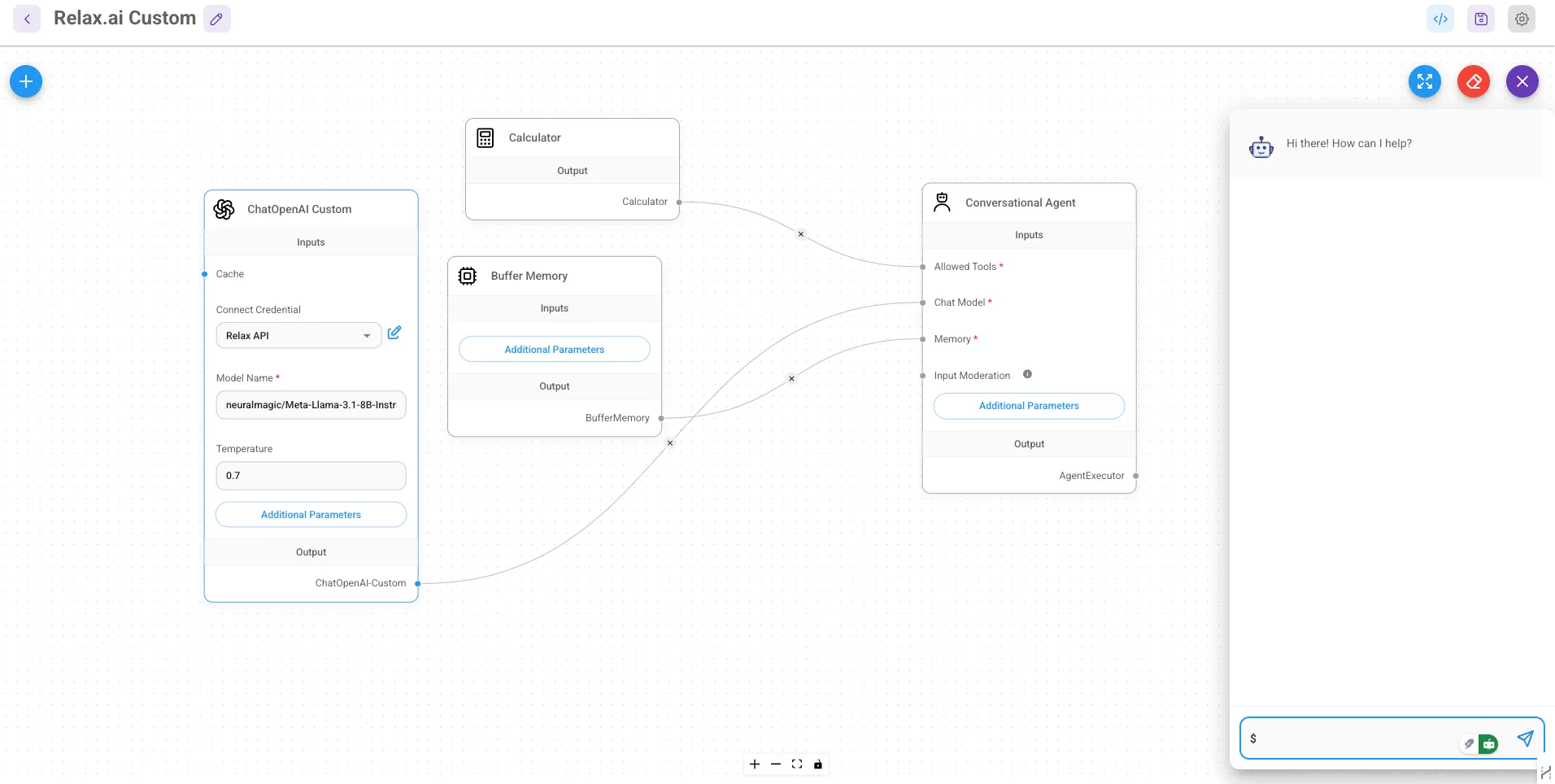
Add additional components like ChatPrompt, TextInput, and TextOutput
-
Connect the components to create a complete flow:
TextInput → ChatPromptChatPrompt → ChatModel (relaxAI)ChatModel → TextOutput
10. Save Your Flow
Section titled “10. Save Your Flow”- Click the “Save” button in the top-right corner
- Your relaxAI integration is now ready to use
11. Test Your Setup
Section titled “11. Test Your Setup”- Click the “Prediction” tab at the top
- Enter a test message and check if your relaxAI model responds correctly
Code Example
Section titled “Code Example”import { ChatOpenAI } from "@langchain/openai";
const llm = new ChatOpenAI({ modelName: "Llama-4-Maverick-17B-128E", openAIApiKey: "RELAX_API_KEY", configuration: { baseURL: "https://api.relax.ai/v1/" }});Resources
Section titled “Resources”- FlowiseAI Documentation
- FlowiseAI GitHub Repository
- LangChain Integration Guide
- FlowiseAI API Reference