

GPT4ALL Integration
Overview
Section titled “Overview”GPT4ALL is an ecosystem of open-source large language models that can run locally on consumer hardware. It allows users to download and run various LLMs on their own devices without requiring cloud API access.
Key Features
Section titled “Key Features”- Local Execution: Run AI models directly on your device
- Model Marketplace: Download from a variety of open-source models
- Chat Interface: User-friendly GUI for interacting with models
- API Server: Local API compatible with OpenAI’s format
- Cross-Platform: Available for Windows, macOS, and Linux
Use Cases
Section titled “Use Cases”- Privacy-focused AI applications without cloud dependency
- Offline AI assistance for remote environments
- Research and experimentation with various LLM architectures
- Educational tools for learning about language models
- Prototyping applications before moving to cloud APIs
Setup Instructions
Section titled “Setup Instructions”-
Download GPT4ALL
- Visit the GPT4ALL website
- Download the installer for your operating system
- Run the installer and follow the prompts
-
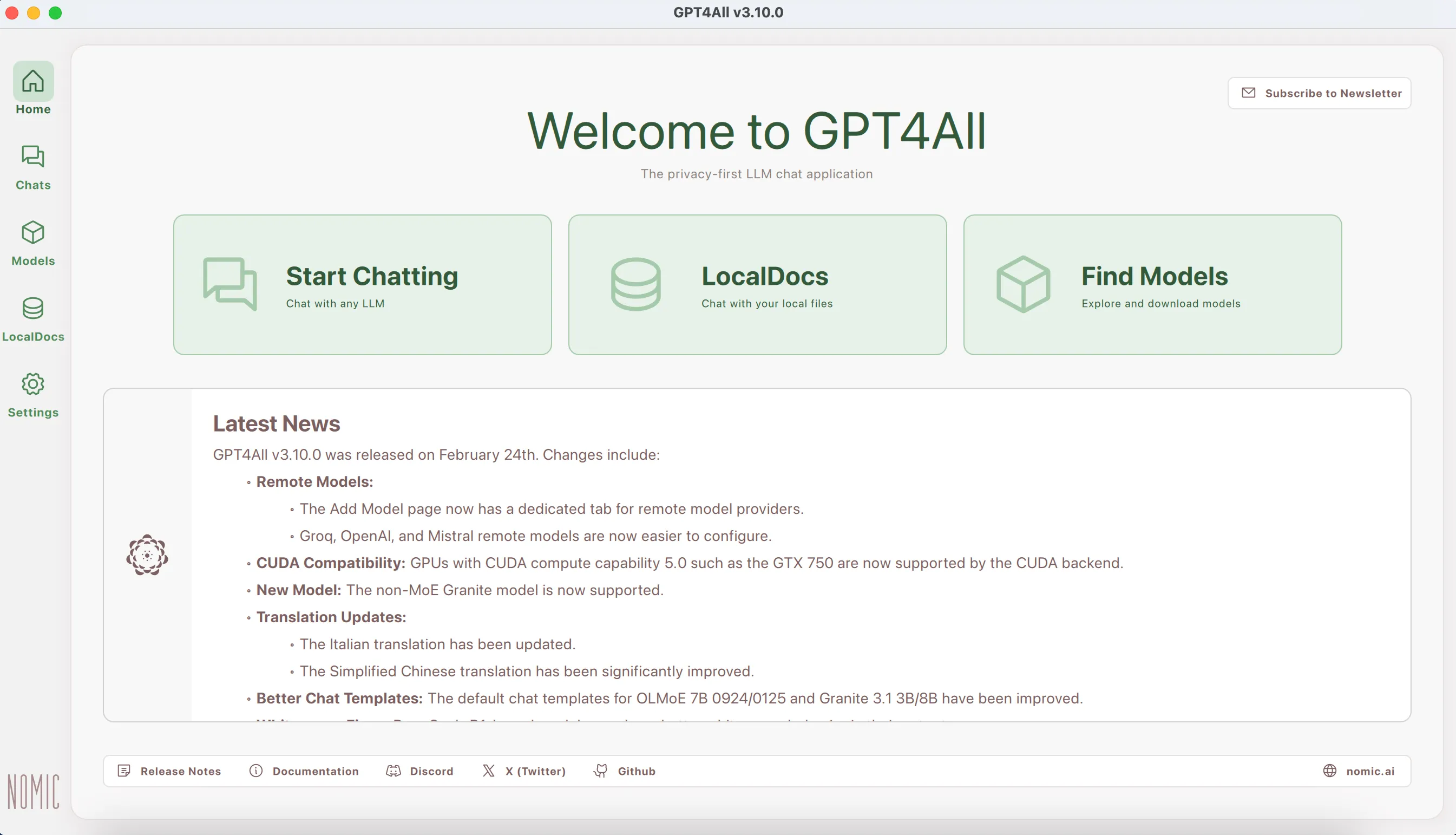
Launch GPT4ALL
- Open the application after installation
- Navigate through the initial setup wizard
-
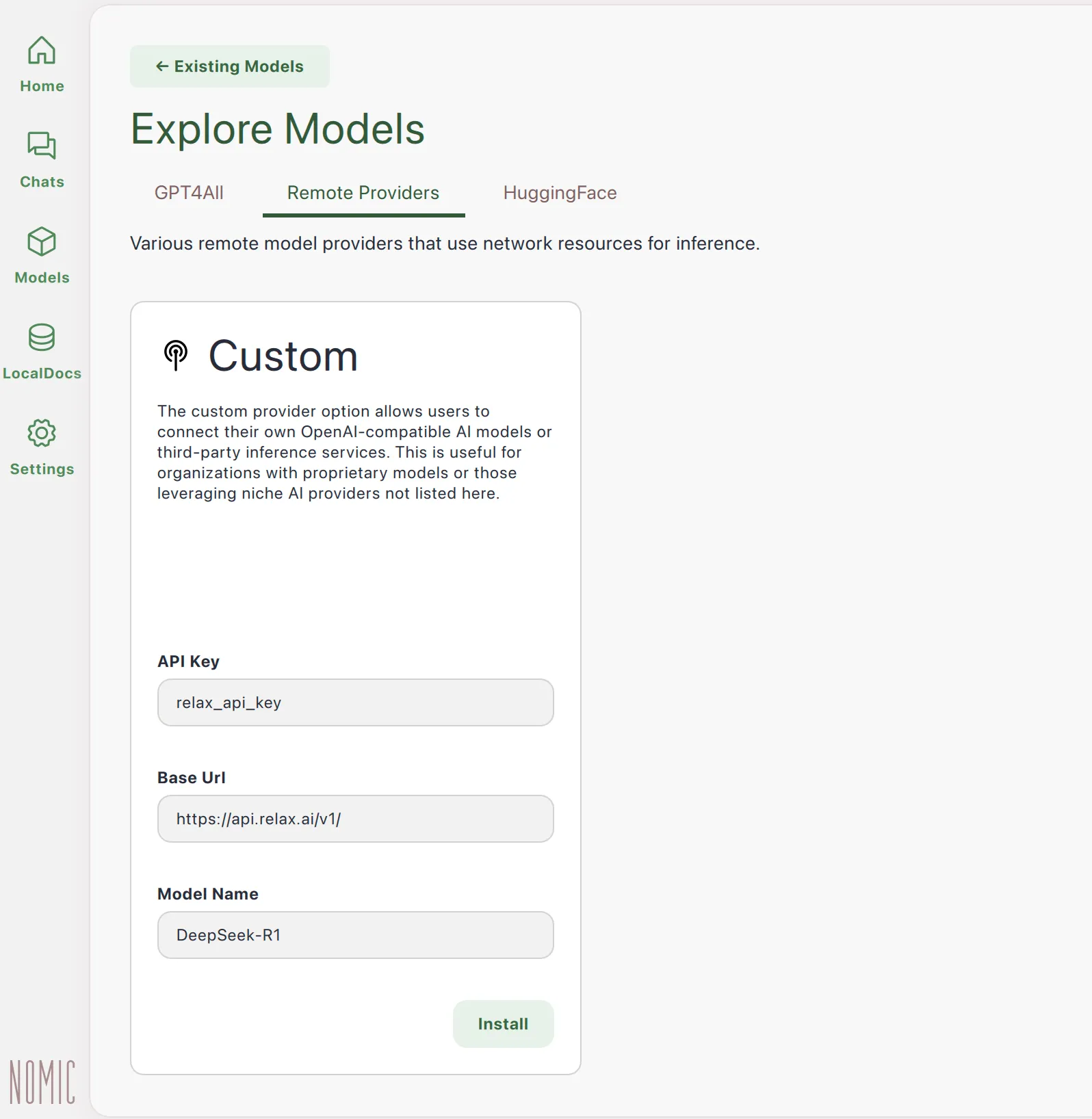
Configure Models
- Click on the “Models” tab
- Browse available models and download the ones you want to use if you want local models.
- To setup remote models, select the “Remote” option and configure the custom provider.
- For the custom provider, enter the following:
API Base URL: https://api.relax.ai/v1API Key: your_api_keyModel Name: <relaxai model name>
- Hit install to download the model and install it locally.
-
Start Local API Server
- Go to the “Settings” tab
- Scroll down to “API Server”
- Toggle “Enable API Server” to ON
- Note the port number (default is 4891)
-
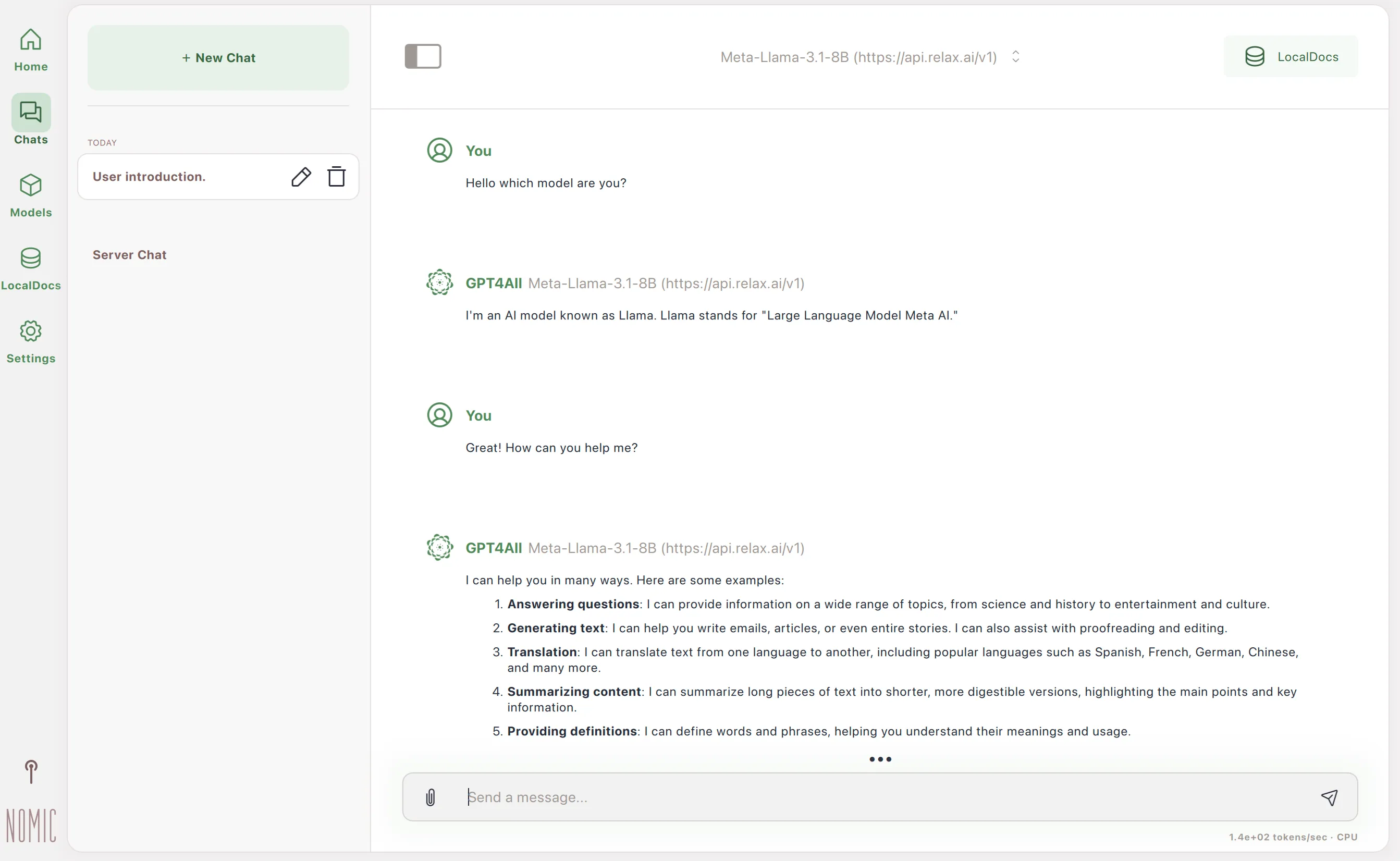
Test your model
- Click on the “Chat” tab
- Select the model you want to test
- Type a message and hit enter
Advanced Configuration
Section titled “Advanced Configuration”-
Model Settings
- Adjust inference parameters for each model:
- Context Length: Set how much conversation history to consider
- Temperature: Control randomness of responses
- Top K/P: Fine-tune token selection algorithm
-
Server Configuration
- Change the API server port
- Configure CORS settings for web applications
- Set maximum request size and timeout values
Troubleshooting Tips
Section titled “Troubleshooting Tips”- If models are running slowly, check your hardware capabilities and consider smaller models
- For out-of-memory errors, reduce the context length or batch size settings
- If the API server isn’t responding, check that it’s enabled and the port isn’t blocked by a firewall
- Verify that downloaded models are properly installed in the models directory