

Zed Integration
Overview
Section titled “Overview”Zed is a high-performance, collaborative code editor designed for speed and efficiency. It includes built-in AI assistance features that can be customized to use different language models.
Key Features
Section titled “Key Features”- Collaborative Editing: Real-time collaboration with peers
- AI Assistant Integration: Built-in AI code assistance
- High Performance: Rust-based editor optimized for speed
- Multiple Cursor Support: Efficient multi-line editing
- Project-Wide Search: Fast code navigation and search
Use Cases
Section titled “Use Cases”- Collaborative software development
- Pair programming sessions with AI assistance
- Remote team coding with shared context
- High-performance code editing with AI suggestions
Setup Instructions
Section titled “Setup Instructions”-
Install Zed
Follow the Zed installation instructions
-
Open Zed preferences
Open Zed preferences
CMD/CTRL + Shift + P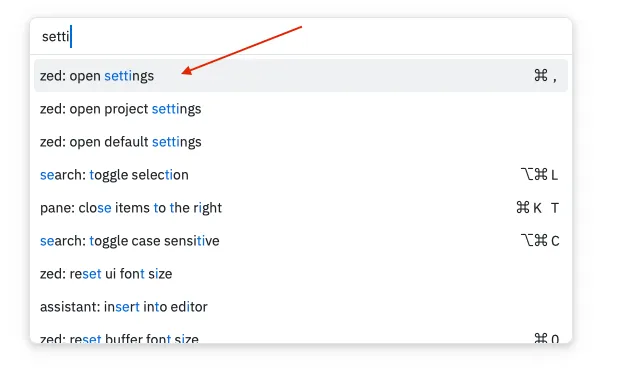
-
Open settings file
Navigate to zed:open settings to open the
settings.jsonfile. -
Add custom LLM provider
Add a custom LLM provider with these settings:
{"language_models": {"openai": {"api_url": "https://api.relax.ai/v1","available_models": [{"name": "DeepSeek-R1-0528","display_name": "Deepseek R1 0528","max_tokens": 131072,"max_output_tokens": null}],"version": "1"}},} -
Set default assistant model (optional)
If you would like to use the custom model as default assistant, set the following parameters in the same
settings.jsonfile:"assistant": {"default_model": {"provider": "openai","model": "DeepSeek-R1-0528"},}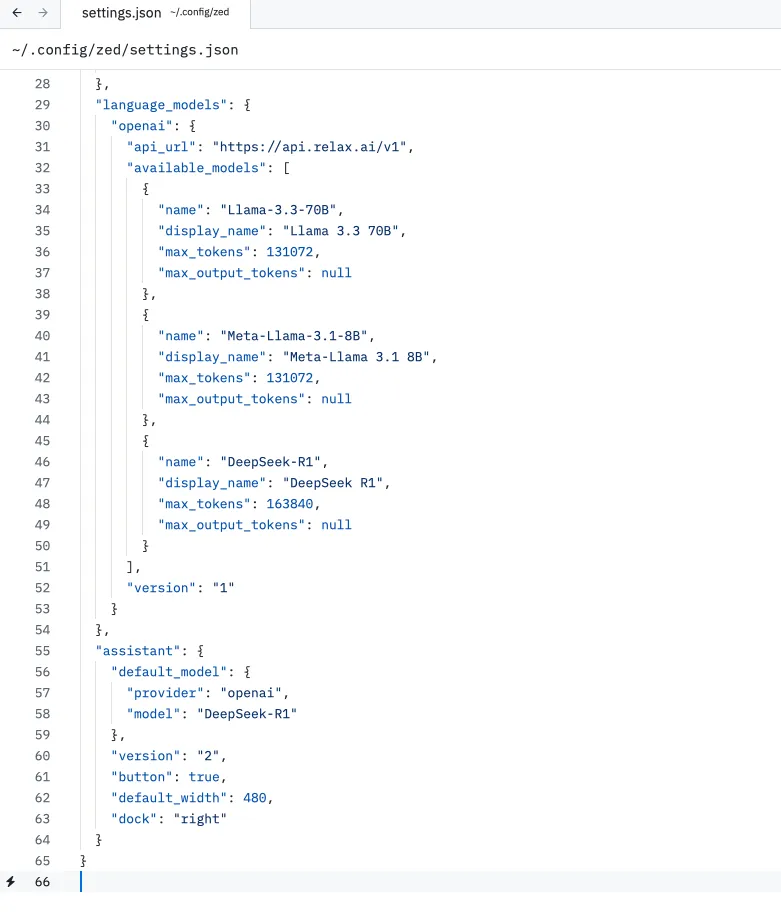
-
Configure API key
Make sure to set your
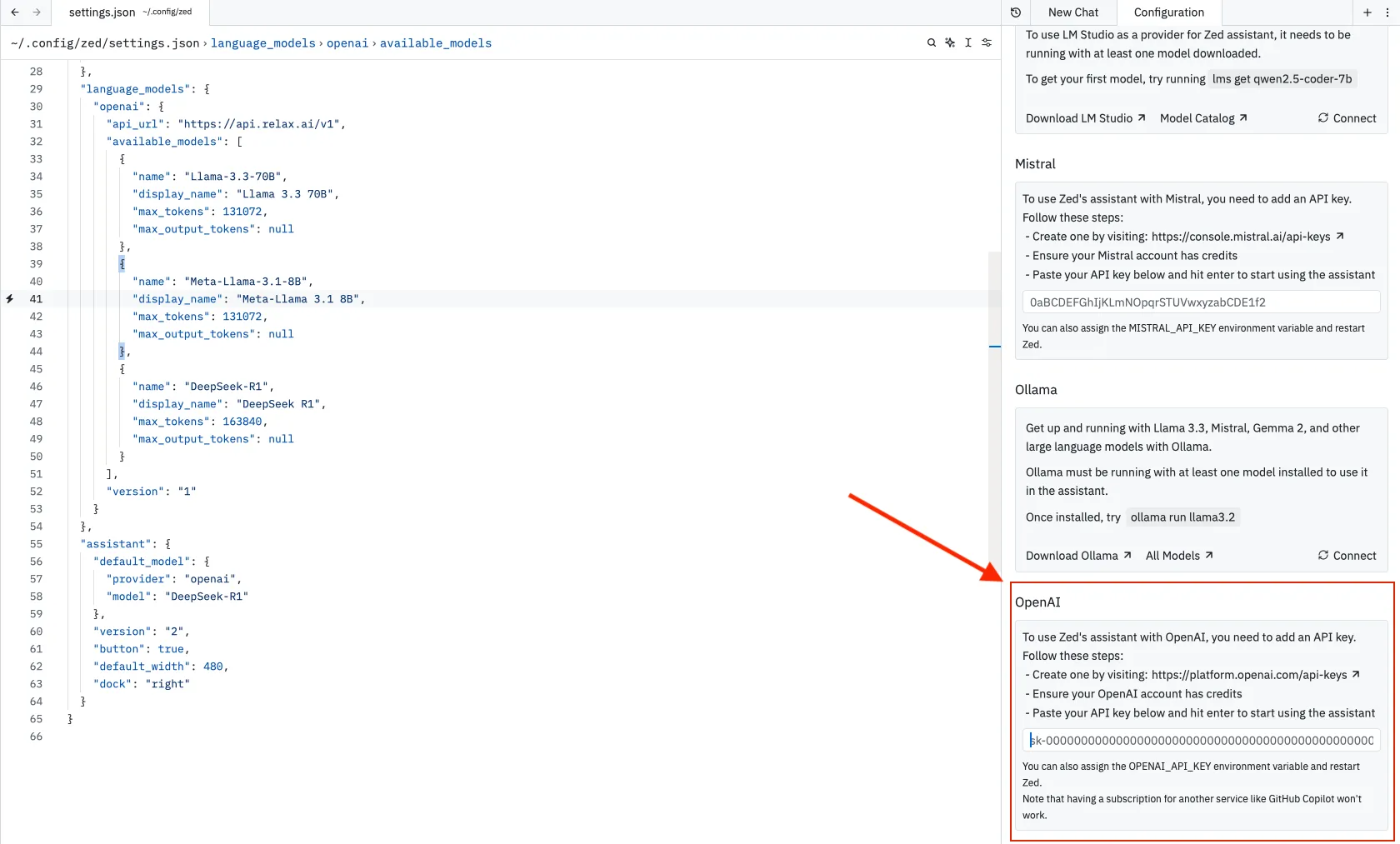
RELAX_API_KEYto the environment variableOPENAI_API_KEYor configure the key under OpenAI section in the chat configuration. -
Save and restart
Save changes and restart Zed.
Using AI Assistant in Zed
Section titled “Using AI Assistant in Zed”To use the AI assistant in Zed with your custom model:
- Press Cmd+I (Mac) or Ctrl+I (Windows/Linux) to open the assistant
- Type your query or request
- The assistant will respond using your configured relaxAI model